Make your video invitation
Press Video and your invitation is already a storyboard: a slide for the opening, one for your names, one for the dates, one per ceremony, one to sign off and one for the QR code. Tap a slide to change what it says, drag the slides into a different order, leave out the ones you do not want, then press Make the film.
WhereVideo
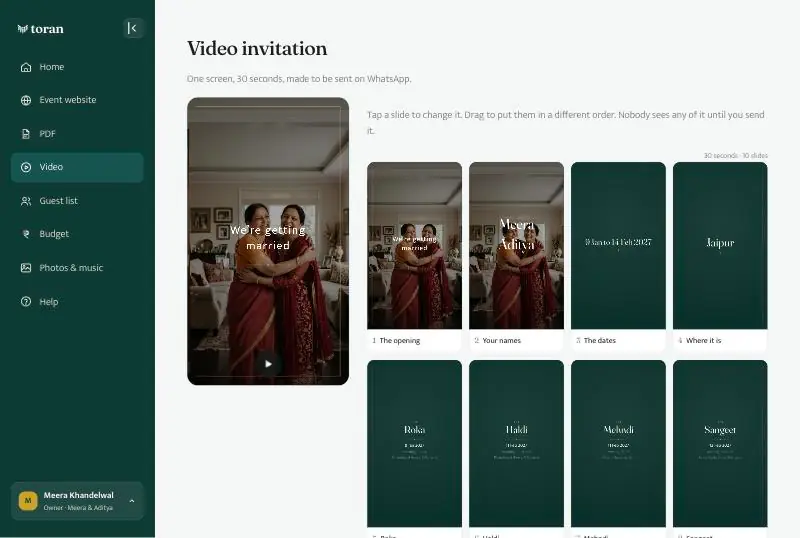
The slides
There are seven kinds, and the ceremony slide repeats — one per function, so a wedding with six ceremonies has more slides than one with two.
- The opening
- The first thing a guest reads.
- Your names
- The frame people screenshot.
- The dates
- Which days to keep free.
- Where it is
- The city everyone travels to. While this slide is in the film, the dates slide leaves the city off, so nobody reads it twice.
- Which ceremony
- One card per function, carrying its name, date, time and venue. This is the slide that repeats.
- With love
- How you sign off. Leave it empty and the film signs off the way your Our story section does.
- The QR code
- Always last, and it cannot be moved or taken out — it is the only way somebody watching can reach your invitation and reply, because a video cannot take an answer by itself.
Changing a slide
Tap a slide to open it. Anything drawn from the invitation — a name, a city, a ceremony — says Change on Event website instead of being editable here, because there is one place each of those is set.
- Colour
- The ground behind that slide: Deep, Rich, Pale or Ink, drawn from your own theme so no slide can be a colour your invitation is not.
- Choose one of yours
- Puts one of your photographs behind the slide, from the ones you have already uploaded.
- In the film
- Whether this slide is in it at all. Turning one off keeps whatever you typed into it.
- Earlier
- Moves the slide one place towards the start. Dragging it does the same thing.
- Later
- One place towards the end.
- Add a slide of your own
- A heading and a line or two of your own. You get two of these, and the counter says how many are left.
- Remove this slide
- Deletes one of your own slides. The built-in ones cannot be deleted, only turned off.
- Done
- Closes the slide you were editing.
And across the top:
- Play your slides
- Plays the whole film in the phone-shaped frame, without making a file.
- Undo
- Takes back your last change to the storyboard.
Music on the film
Add music puts your track behind the film, cut to its length. It is the same track as the one on your invitation page — uploaded once, in Photos & music.
How long it is
The length is simply the slides added up, and the counter at the top says what it currently is — around half a minute for a six-ceremony wedding. Turn slides off and it gets shorter. There is no setting for it.
Making it and sending it
- Press Make the film. It is rendered on your own device and takes about thirty seconds, so leave the tab open.
- Press Save the video to keep the file.
- Press Send it to pass it to WhatsApp.